Fragment: Button (PVGR)
This fragment provides a button with several options, explained below.
For page-designers
After having added this fragment to a page, you have the following configuration options (under BUTTON-OPTIONS):
button has icon
Choose 'yes' if you want this button to have an icon, also complete the two next fields
icon name
- go to https://fontawesome.com/icons
- search for and click on the icon of your choice.
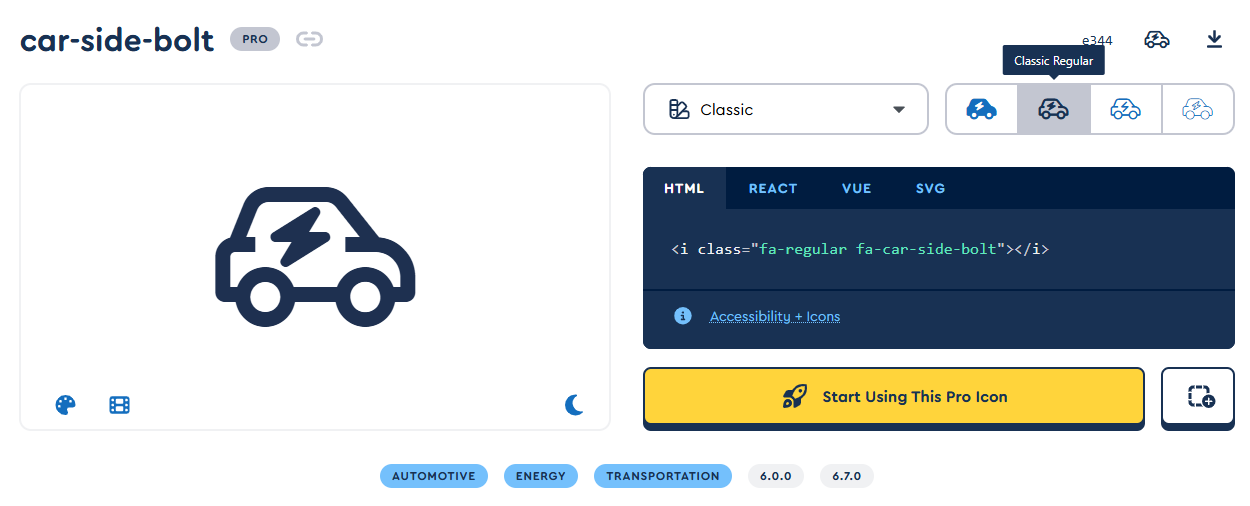
- this will open the properties which will look something like this:
- in the top-left corner, click on the name (in this example 'car-side-bolt'), this will copy the name to the clipboard.
- back in liferay, in the BUTTON OPTIONS, paste the name in the 'Icon name' field.
icon position
Choose if you want to position the icon on the left or the right.
style
Choices are: Primary, Secondary, Link
mode
Choices are: Default or Dark.
Dark mode can be used when the buttons are placed on a dark background.
helper-class: .button-group
A helper class .button-group is available when you need to have buttons grouped.
- First add a container where you want to add the buttons.
- Add the class button-group in the 'css classes'-field on the advanced-tab.
- Add the buttons to this container and apply the correct configuration.
For content-editors
- Options for icon, style and mode can not be changed, this needs to be done by a page-designer.
- Label and link can be changed. To know how this is done, please read the KB article How to edit content.